A New Screen for Viewing Events

Hey, where did the events chart and metrics table go? It’s not on summer vacation, it moved to its own dedicated screen called Events and can now be found under the website menu in your Umami dashboard. The Events screen provides a quick snapshot of the custom events that are being triggered for a given time period.
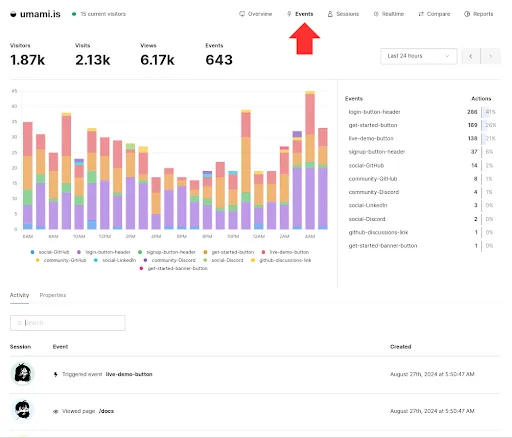
Also, if you scroll down a little from the main Events chart, you will see new features called Activity and Properties. Activity is a stream of all custom events and page views happening on your website or app in real-time. Directly next to the Activity tab is the Properties tab. We're introducing support for saving session data which works similarly to custom event data and opens up new possibilities for user tracking and analysis. You can now use the identify function from the tracker script to save data about the current session; that data will appear in the new Properties tab.
For example:
umami.identify({ email: '[email protected]' });
What is the new Events screen?
The Events screen offers two key features:
- Reporting on Custom Events: The report shows all the custom events that have occurred within a specified timeframe. Select "Today" to show the events happening in real-time today; this might be useful if you have a big campaign launching and want to get a sense of how it's performing.
- Activity Stream: If you scroll down from the main report, there is a section called Activity. Activity is a stream of data - that combines both custom events and page views - that are happening.
How to Use the Events Report
The Events report is easy to use and access. To access the Events report:
- Log in to your Umami Cloud account
- Navigate to the Websites section
- Select the Events report
From here, you can:
- View all custom events within your chosen timeframe.
- See the activity stream, which includes both custom events and page views.
- Click into the Activity stream for additional information. Clicking on any avatar in the activity stream opens a new page showing details about that particular visitor.
Use Cases for Events
Now that we've covered how to access and use the Events screen, let's explore some possible use cases that demonstrate how different teams within your organization can use the Events screen.
Feature Adoption Tracking
Your product team has just launched a new feature and wants to track adoption. Set up custom events for key actions within the new feature. For example, if you've launched a new collaborative editing tool, you might track events like "collaboration_started," "document_shared," or "comment_added."
Use the Events report to monitor the frequency of these events over time or in real-time to see if your new feature launch aligns with a marketing push to promote it. This will give you insights into how quickly users adopt the new feature and which aspects they use most. By analyzing this data, you can identify which parts of the feature are most popular and which might need improvement. You can also use this information to inform future feature development and prioritize your product roadmap based on actual user behavior.
User Journey Optimization
To understand and optimize the path users take from signing up to becoming active users, create custom events for each significant step in the user journey, such as "account_created," "profile_completed," "first_project_created," "invited_team_member," etc.
Use the Events report to see the frequency and order of these events. This can help you identify where users might need help or drop off in their journey to becoming active users. For instance, if you notice users aren't completing their profiles, you might consider simplifying the process or offering incentives.
Campaign Performance Tracking
When your marketing team runs a campaign and sends traffic to a landing page, they can track its performance in real time by setting up custom events for each critical touchpoint. For example, "button_clicked" (get as granular as you’d like and add an event for each button), "landing_page_viewed," "demo_requested," "whitepaper_downloaded," “newsletter_signup,” etc.
Use the Events report, particularly the Activity stream, to monitor these events in real time as the campaign launches. This allows for quick adjustments to the campaign strategy if certain channels (you could create multiple versions of the landing page and tag it for specific channels. I.e., send the email campaign to the email version of the landing page to gauge that one specific channel vs others) or touchpoints are underperforming. For instance, if you notice that the "demo_requested" event is occurring less frequently than expected, you might decide to tweak your landing page copy, adjust your call-to-action, change the position or color of the button, etc. The real-time nature of this data allows for agile marketing, enabling your team to optimize campaigns on the fly.
Error Monitoring and Debugging
For development teams looking to track and respond to errors in real time, set up custom events for different types of errors or exceptions in your application; for example, "api_error," "payment_processing_failed," "database_connection_lost," etc.
Use the Activity stream in the Events report to monitor these error events in real time. This allows developers to quickly identify and respond to issues as they occur, improving the overall stability and user experience of the application. Over time, analyzing the frequency and patterns of these error events can help identify recurring issues or bottlenecks in your system, informing your long-term development and infrastructure decisions.
These are just some ideas on how different teams in your organization can use the new Events screen. Hopefully, this got the ideas flowing for you! Whether optimizing user experiences, refining marketing strategies, or enhancing application stability, the Events report provides the real-time data you need to move fast.
Have questions about the new Events report or need help setting up custom events? Don't hesitate to reach out to our support team at [email protected]. We're here to help you get the most out of Umami!