How to Use Session Replay to Find Out Why Visitors Get Stuck
How to choose which sessions to watch, set up replay with privacy masking, take useful notes, and turn what you see into changes you can measure.
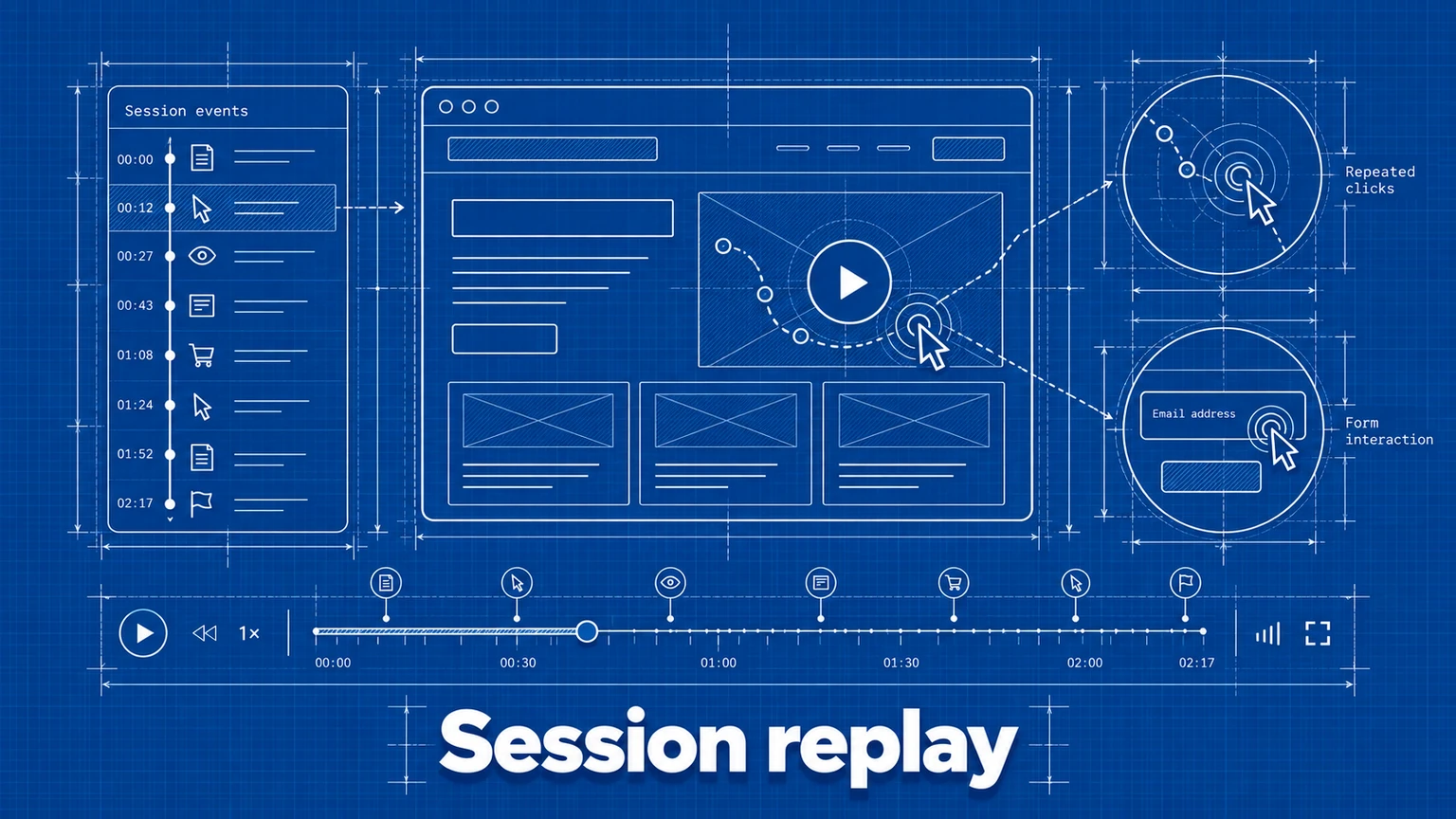
Reports tell you where visitors struggle. A funnel shows that many people leave at the shipping step; a journey shows that they detour to the FAQ first. Neither shows what happened on the page. Session replay fills that gap by recreating an individual visit: the clicks, the scrolling, and the navigation, in order.
Replay is also easy to misuse. Watching sessions at random takes hours and produces anecdotes. This guide covers a focused way to use it: start from a measured problem, watch a small set of relevant sessions, and confirm what you find with numbers.
Start with a question from your reports
Choose a problem that another report has already located. For example:
- A funnel step with unusually high drop-off.
- A page that journey analysis shows people leave and return to repeatedly.
- A form with many starts and few submissions.
- A click pattern in a heatmap that you cannot explain.
Write the question down before you watch anything: "Why do visitors leave the checkout page after opening the shipping options?" A specific question tells you which sessions to open and when you have seen enough.
Set up replay in Umami
Session replay is turned on per website. In Websites, edit the website, open Replays & Heatmaps, and enable Replays. Then add the recorder script for your installation alongside your tracker, as shown in the Replays documentation. On Umami Cloud, replays are available on Business and Enterprise plans; they are included when you self-host v3.1 or later.
Four settings control what is recorded:
- Sample rate sets the fraction of sessions to record. The default is 0.15, or 15% of sessions.
- Mask level controls privacy masking. The default, moderate, masks all input fields. Strict masks all inputs and all text on the page.
- Max duration stops a recording after a set length. The default is five minutes.
- Block selector takes a CSS selector for elements to leave out of recordings entirely.
Recording starts with sessions that begin after you enable the feature. Earlier visits are not backfilled, and replays are stored for a limited time, so capture what you need while investigating instead of treating recordings as an archive.
Decide what to mask before you record
Replay shows more of a visit than any aggregate report, so settle privacy choices first.
- Keep input masking on. The default already masks form fields.
- Use the strict mask level on pages that display account details, order history, or anything a visitor would not expect to be recorded.
- Use the block selector for components that should never appear, such as an embedded payment form or a support chat.
- Tell visitors that you record sessions, in your privacy policy and wherever your legal obligations require it.
Check a recording of your own visit after setup and confirm that sensitive areas are masked as intended.
Choose which sessions to watch
Open Replays for the website to see recorded sessions, or open a visitor's profile in Sessions and select its Replays tab. Opening replays from a session profile is useful because the profile also lists the pages and events in that visit, so you can tell whether the session reached the step you care about before you press play.
Select sessions that share a starting point relevant to your question:
- Sessions that reached the problem page and then left.
- Sessions that reached the same page and continued. Seeing what successful visitors did differently is often the fastest route to a hypothesis.
- Sessions on the device type where the problem is concentrated, if your funnel shows a difference between mobile and desktop.
Watch a handful from each group before forming a view.
Watch with a note template
Use the playback speed controls and skip inactive periods to move quickly. For each session, record the same few things:
- Where the visitor hesitated. Long pauses, repeated scrolling up and down, or the pointer moving between two options.
- What they tried that did not work. Clicks on elements that are not interactive, repeated clicks on a control, or a form submitted more than once.
- What they looked for. Opening a FAQ, expanding details, or leaving for another page and returning.
- Where the session ended.
After several sessions, tally the notes. A behavior that appears in most of the sessions that left, and in few of those that continued, is your strongest lead. Save replays that illustrate the problem clearly with the player's Save button so you can show them to colleagues later.
Worked example: a shipping step
An online store sees that 60% of visitors who reach the shipping step do not continue to payment. The team opens ten replays of sessions that left at that step and five that continued.
In seven of the ten abandoned sessions, the visitor selects a country, waits, scrolls down to look for a price, scrolls back up, and leaves. In the sessions that continued, visitors selected a country for which a rate appeared immediately. The team checks the page and finds that rates for some regions load only after a postcode is entered, with no message explaining that.
They add a line under the country field stating that the rate appears once a postcode is entered. Then they compare the funnel's shipping-to-payment conversion for similar periods before and after the change. The replays supplied the explanation; the funnel supplies the measurement.
Confirm before you generalize
A replay is one visit. Before changing a page for everyone:
- Count it. Use a funnel, a goal, or an event to measure how many visitors show the behavior you observed.
- Check the sample. With a 15% sample rate, the sessions you watched are a subset. Raise the rate temporarily if a low-traffic page gives you too few recordings.
- Look at the aggregate. A click heatmap for the page shows whether the dead click you saw in three replays is widespread.
- Test the fix. Compare the measured outcome before and after, or run an A/B test when traffic allows.
Common mistakes
- Watching without a question. Random viewing produces stories, not findings. Start from a located problem.
- Generalizing from one vivid session. A memorable recording is not a trend. Look for repetition and then measure it.
- Only watching failures. Sessions that succeeded show what the page looks like when it works, which makes the difference visible.
- Recording everything. A high sample rate on every page creates more footage than anyone will watch. Record where you are investigating.
- Skipping the privacy review. Decide masking and blocked elements before enabling replay, and verify them with a test recording.
- Stopping at the explanation. A replay tells you what to try. The work is finished when a measured outcome improves.
Frequently asked questions
How many replays do I need to watch?
Enough to see a pattern repeat. Watching five to ten sessions that share the same starting point usually shows whether a problem is common or a one-off. Replays suggest what to investigate; use a funnel or goal to measure how many visitors are affected.
Does session replay record what visitors type?
In Umami, the default moderate mask level masks all input fields. The strict level masks all inputs and all text on the page. You can also provide a CSS selector to exclude specific elements from recording entirely.
When should I use a heatmap instead of a replay?
Use a heatmap to see aggregate clicks and scroll depth on one page. Use a replay to follow one visitor through a sequence of pages and see the order of their actions. They answer different questions and work well together.
Umami is an open-source web and product analytics platform. Set up tracking in minutes and measure traffic, events, funnels, and retention without cookies.
Related documentation
Related guides
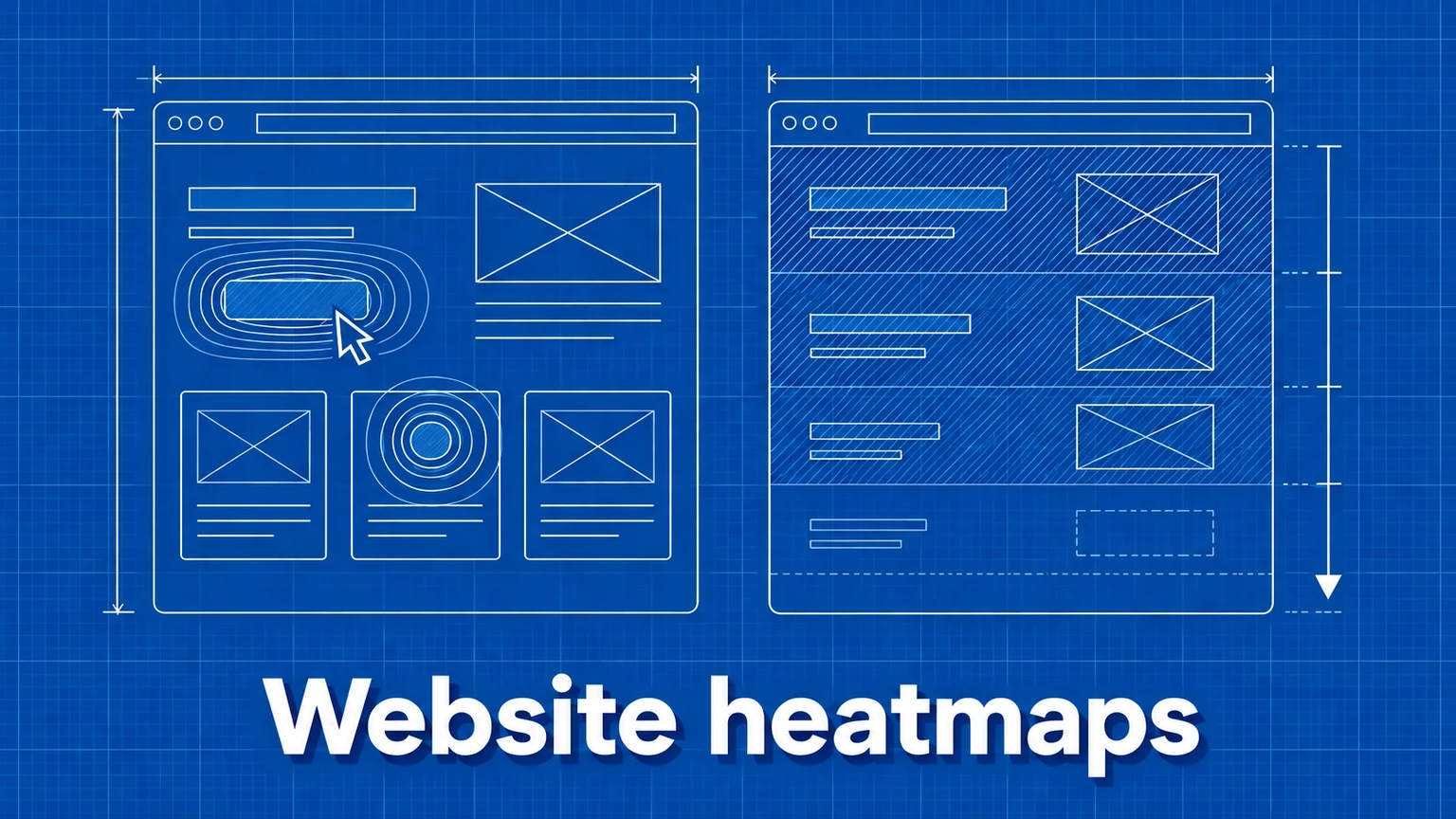
How to Use Heatmaps to Improve Your Website
Use click and scroll heatmaps to spot confusing interactions, improve content placement, and test changes against the outcomes that matter.
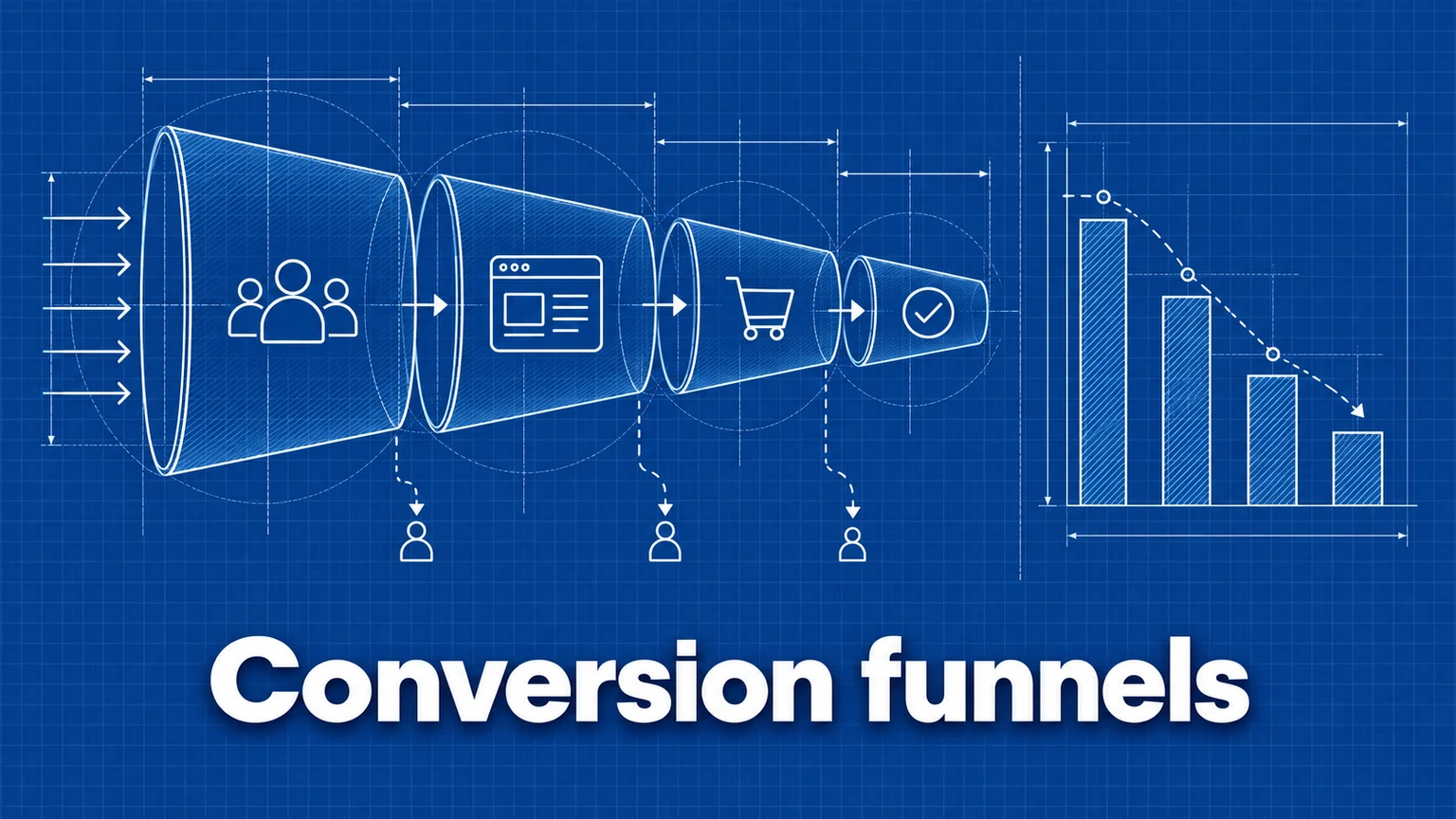
How to Build and Analyze a Conversion Funnel
How to design funnel steps, set time windows, interpret drop-off rates, and turn funnel data into changes worth testing.
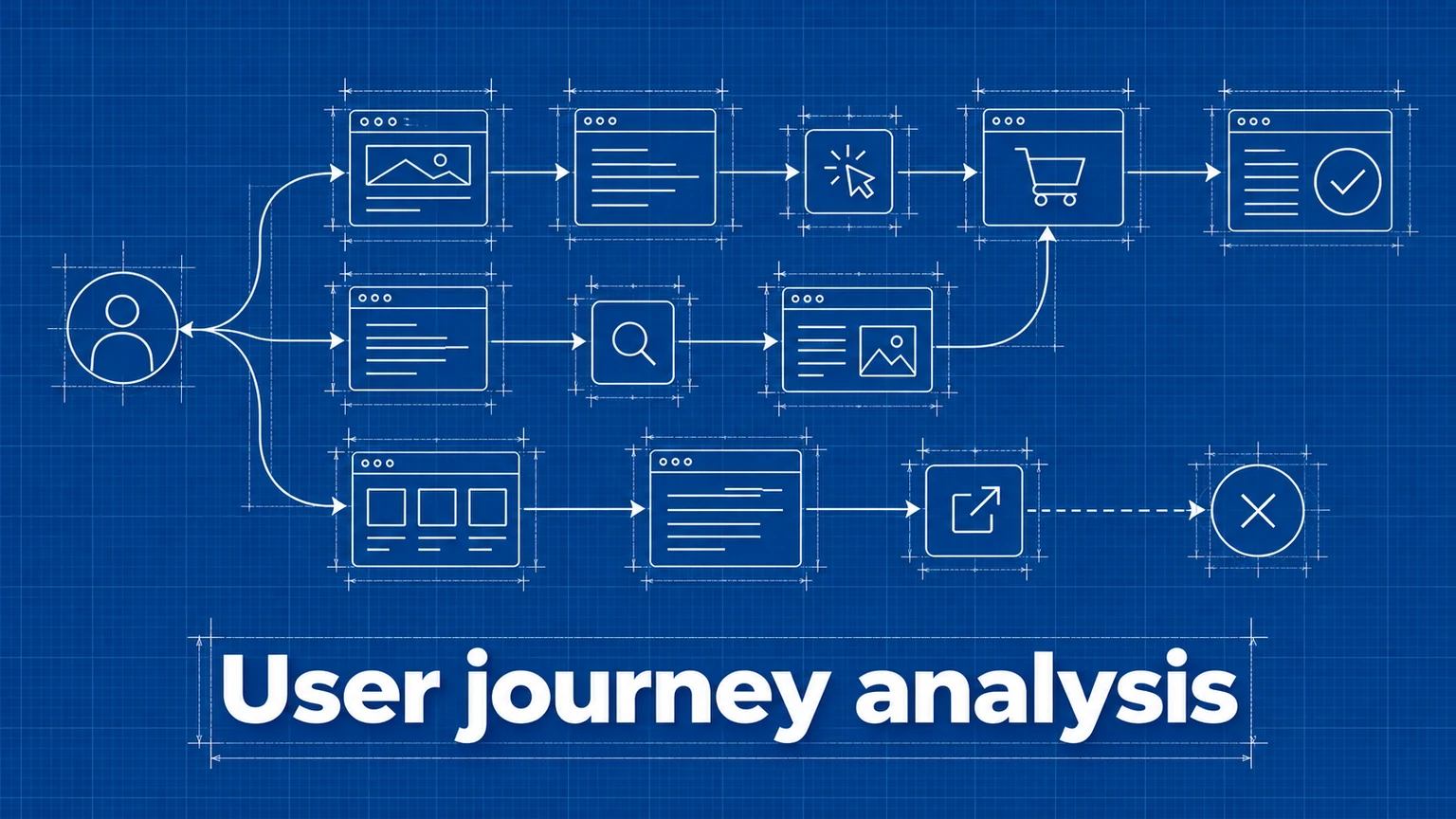
How to Analyze User Journeys on Your Website
Use page and event paths to find common routes, detours, exits, and unexpected paths to conversion, then turn those patterns into testable improvements.