How to Use Heatmaps to Improve Your Website
Use click and scroll heatmaps to spot confusing interactions, improve content placement, and test changes against the outcomes that matter.
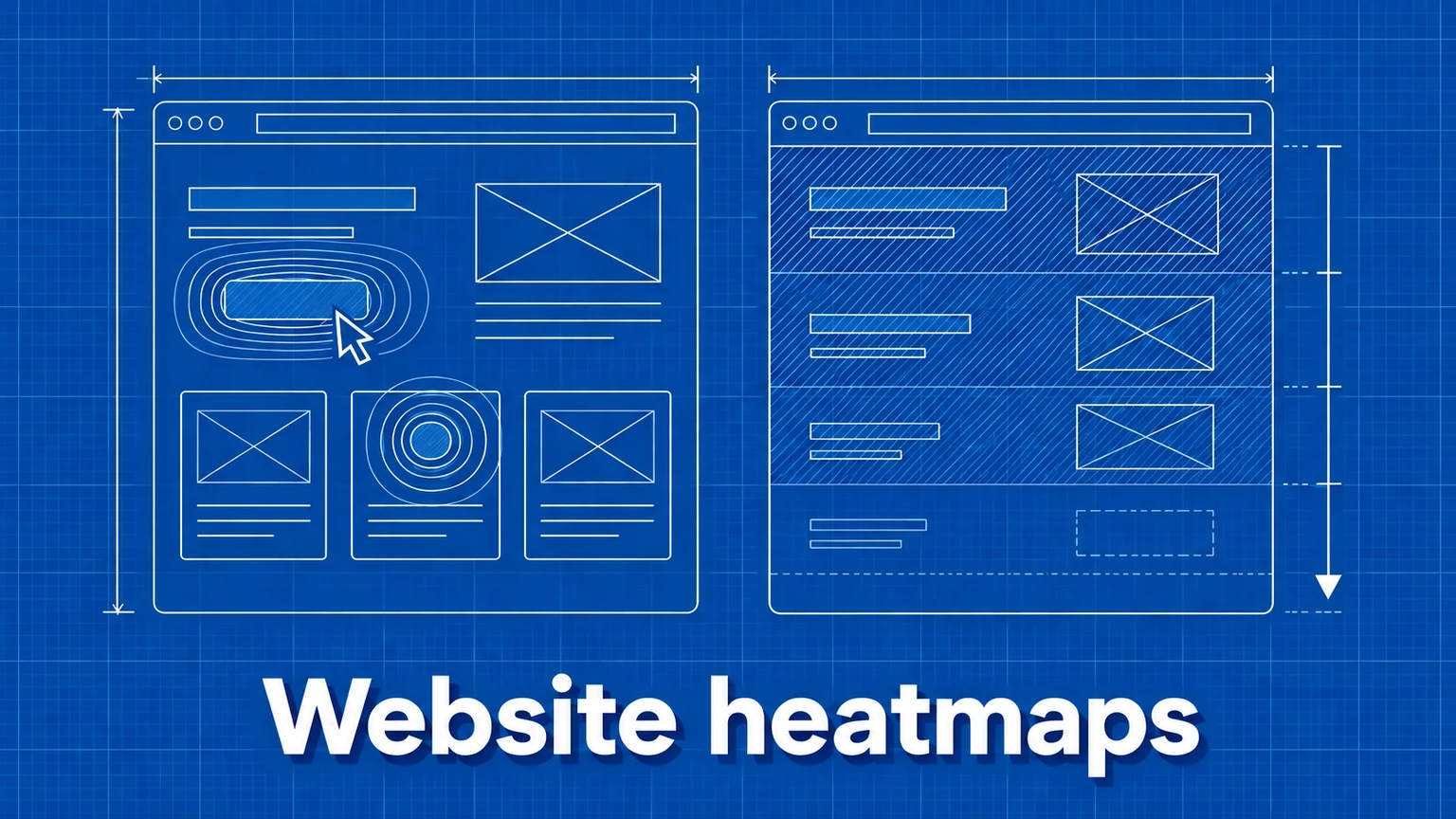
A landing page can get plenty of traffic and still leave visitors unsure where to go next. Page views tell you people arrived; heatmaps help you examine what happens within the page. You can spot a button that gets little use, a graphic people expect to click, or an important explanation that sits below where most visitors scroll.
This guide shows how to turn those observations into focused improvements. The aim is to make the page easier to use and measure whether visitors complete their task, rather than simply make the heatmap look busier.
Start with one page and one question
Choose a page where an improvement would matter: a campaign landing page, a pricing page, or a step with substantial drop-off in a conversion funnel. Give it a specific job, such as helping visitors choose a plan or submit a demo request.
Then write down a question:
- Are visitors reaching the explanation above the signup button?
- Are they trying to open product cards that are not linked?
- Does the mobile layout make the next step difficult to find?
Record the current outcome before editing. For a demo page, that might be sessions with a successful request divided by sessions that viewed the page. Keep the same definition throughout the comparison. A CTA click is a useful intermediate action, but it is not a completed request.
Set up a focused view in Umami
In Websites, edit your website and enable Heatmaps under Replays & Heatmaps. Configure sampling and add the recorder script for your installation as described in the Heatmaps documentation. Collection starts after enabling it; historical visits are not backfilled.
Open the website's Heatmap tab, select a page from Pages, and switch between Click and Scroll. Use Screen width to inspect each responsive layout separately, checking the recorded session count for that width.
The overlay uses a live page preview. If it is blank, check the documentation's embedding requirements. If the page has changed since collection, old activity may no longer align with its current layout; collect fresh data for the new version before interpreting placement.
Choose a period that reflects normal use of the page. Avoid combining a campaign launch, a redesign, and ordinary traffic into one comparison. Note the date range, layout, and sample size alongside each observation so someone else can understand what it represents.
Read click patterns in context
A cluster of clicks tells you where interaction concentrates. It does not tell you whether those interactions were successful or whether every click came from a different person.
Clicks on non-interactive elements. If people click an illustration, heading, or card that does nothing, inspect whether its appearance suggests a link. A product card may need a link to its details; a decorative image may need styling that makes its role clearer. Try the interaction yourself before deciding what to change.
Few clicks on the main CTA. First check whether visitors reach it. If they do, investigate its label, surrounding explanation, contrast, and competing actions. A button labeled “Continue” may leave the next step unclear. A specific label such as “Request a demo” can set a clearer expectation when that is what happens next.
Heavy use of a secondary link. A busy FAQ or delivery-information link may reveal a question the page should answer earlier. It can also represent a useful route. Check where that route leads with journey analysis before removing it to push more people toward the primary button.
If available, session replays can add sequence and context to a pattern: for example, whether visitors open a menu before returning to the same button. They still do not reveal a visitor's reasoning; a usability conversation can help when the explanation remains unclear.
Use scroll depth to improve content placement
Look at where visitors stop reaching the page's key sections. A scroll map measures reach, not reading. Someone can scroll rapidly past an explanation, and someone else can get the answer they need near the top without scrolling further.
Compare the location of your offer, supporting evidence, and next step with the depth visitors reach. If essential information appears late, consider moving a concise version earlier. Keep detailed information available for people who need it.
A sharp decline around a large image or section boundary is a reason to inspect that area. It could look like the end of the page, take too much space on mobile, or follow content that already satisfies the visitor's need. Do not shorten the whole page until you have a specific explanation to test.
Review mobile and desktop separately. A testimonial beside a form on desktop might sit several screens above it on mobile. The same content can create a different experience when its order and spacing change.
Turn an observation into a testable change
Keep a short decision record that separates the pattern from your explanation:
| Observation | Hypothesis | Change to test | Outcome to measure |
|---|---|---|---|
| Clicks cluster on unlinked product cards | Visitors expect the whole card to open details | Make the card a clear, accessible link | Product exploration and completed purchases |
| Few visitors reach the demo form | Introductory content delays the next step | Add an earlier link to the form | Successful demo requests per eligible session |
| Visitors frequently open the delivery FAQ | Delivery uncertainty delays a decision | Put a concise delivery summary near the purchase action | Completed purchases and checkout drop-off |
Prioritize a recurring problem on an important page over an isolated click. Make one focused change at a time so the result is easier to interpret, and check the actual interaction with touch and keyboard as well as a mouse.
Worked example: a buried demo form
Imagine a software landing page where the mobile scroll map shows that only a minority of recorded sessions reach the demo form. Clicks also cluster on a non-interactive “Book a demo” heading near the top.
The team hypothesizes that visitors expect an earlier route to the form. They add a clearly labeled button below the introductory paragraph that links to the existing form. They keep the rest of the page stable and track both the button click and a successful form submission using a consistent event tracking plan.
They then compare eligible sessions and completed requests. More button clicks with no increase in successful requests would prompt a closer look at the form, its requirements, or errors. More completed requests would support the change, but a before-and-after comparison could still reflect different traffic. An A/B test, when traffic allows, provides stronger evidence of the button's effect.
The heatmap identifies where to investigate. The outcome metric determines whether the change helped.
Common mistakes
- Treating hot spots as success. Repeated clicks can reflect confusion. Check that the action works and leads to a useful outcome.
- Equating scroll depth with engagement. Reaching the bottom does not prove someone read or understood the content. Consider the page's purpose and completion metrics.
- Combining different layouts. Screen widths and page versions can put the same element in different places. Compare equivalent views.
- Acting on a handful of sessions. Check sample sizes and whether a pattern repeats before treating it as typical behavior.
- Declaring a win from a prettier map. Record the change date, keep the conversion definition stable, and compare similar audiences. Use traffic analysis to check whether a shift in sources explains the result.
Frequently asked questions
Do heatmaps show what visitors are looking at?
No. Click maps show interactions, and scroll maps show how far visitors reached. Neither measures eye movement, comprehension, or intent. Use them to identify questions to investigate rather than proof that someone read a section.
How much traffic do I need before making a change?
There is no universal minimum. Look for repeated patterns across comparable periods and check how many recorded sessions support each layout. Sparse data can suggest a usability check, but it is a weak basis for claiming that a redesign will improve conversions.
Can a heatmap prove that a change improved conversions?
No. A change in clicks or scroll depth does not establish a conversion lift. Measure the completed outcome with a consistent denominator, and use an A/B test when practical to separate the effect of the change from differences in traffic.
Umami is an open-source web and product analytics platform. Set up tracking in minutes and measure traffic, events, funnels, and retention without cookies.
Related documentation
Related guides
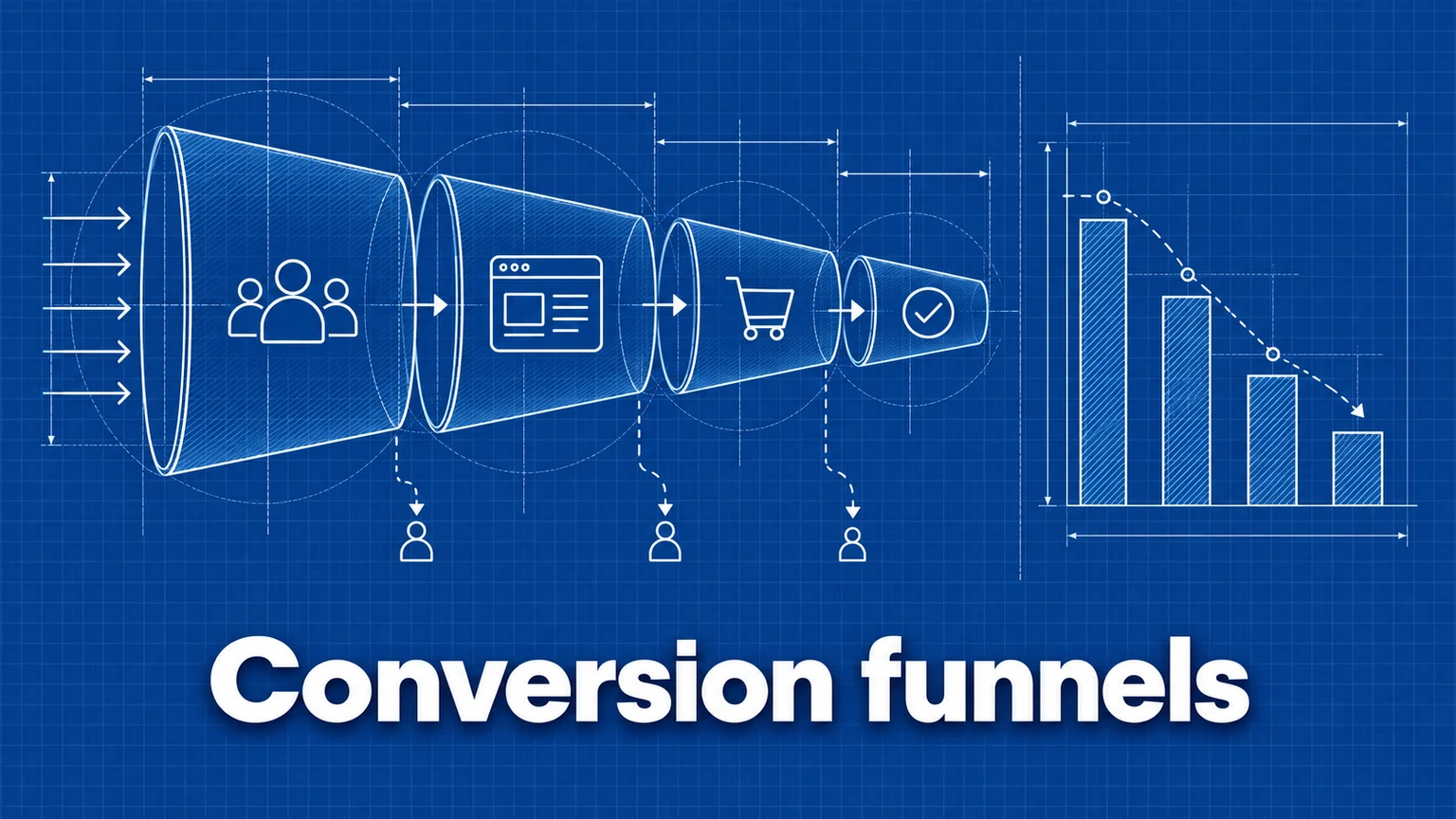
How to Build and Analyze a Conversion Funnel
How to design funnel steps, set time windows, interpret drop-off rates, and turn funnel data into changes worth testing.
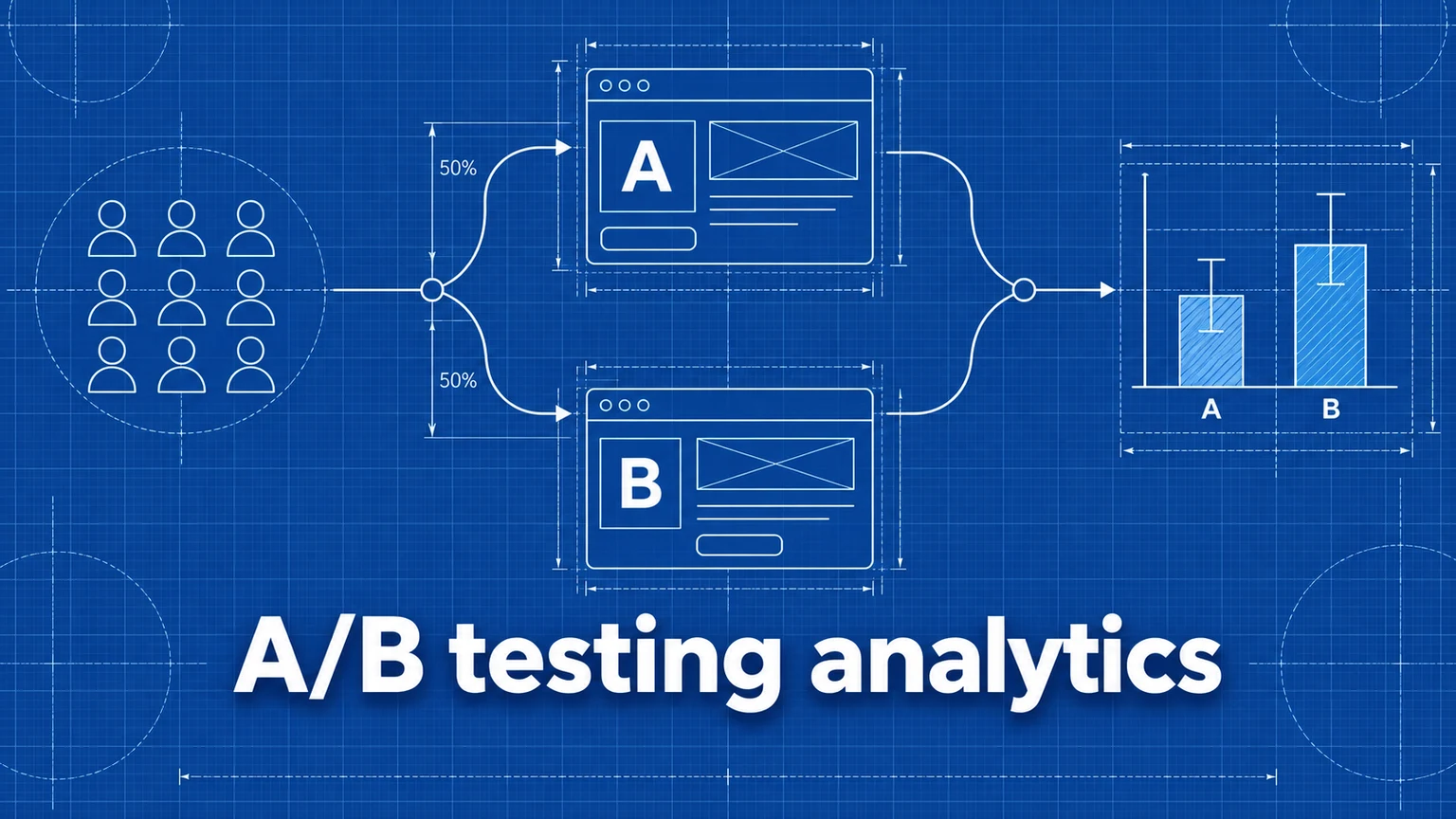
A/B Testing Analytics: How to Measure Experiments on Your Website
How to design an A/B test you can trust — choosing a success metric, splitting traffic, collecting the data, and reading results without fooling yourself.
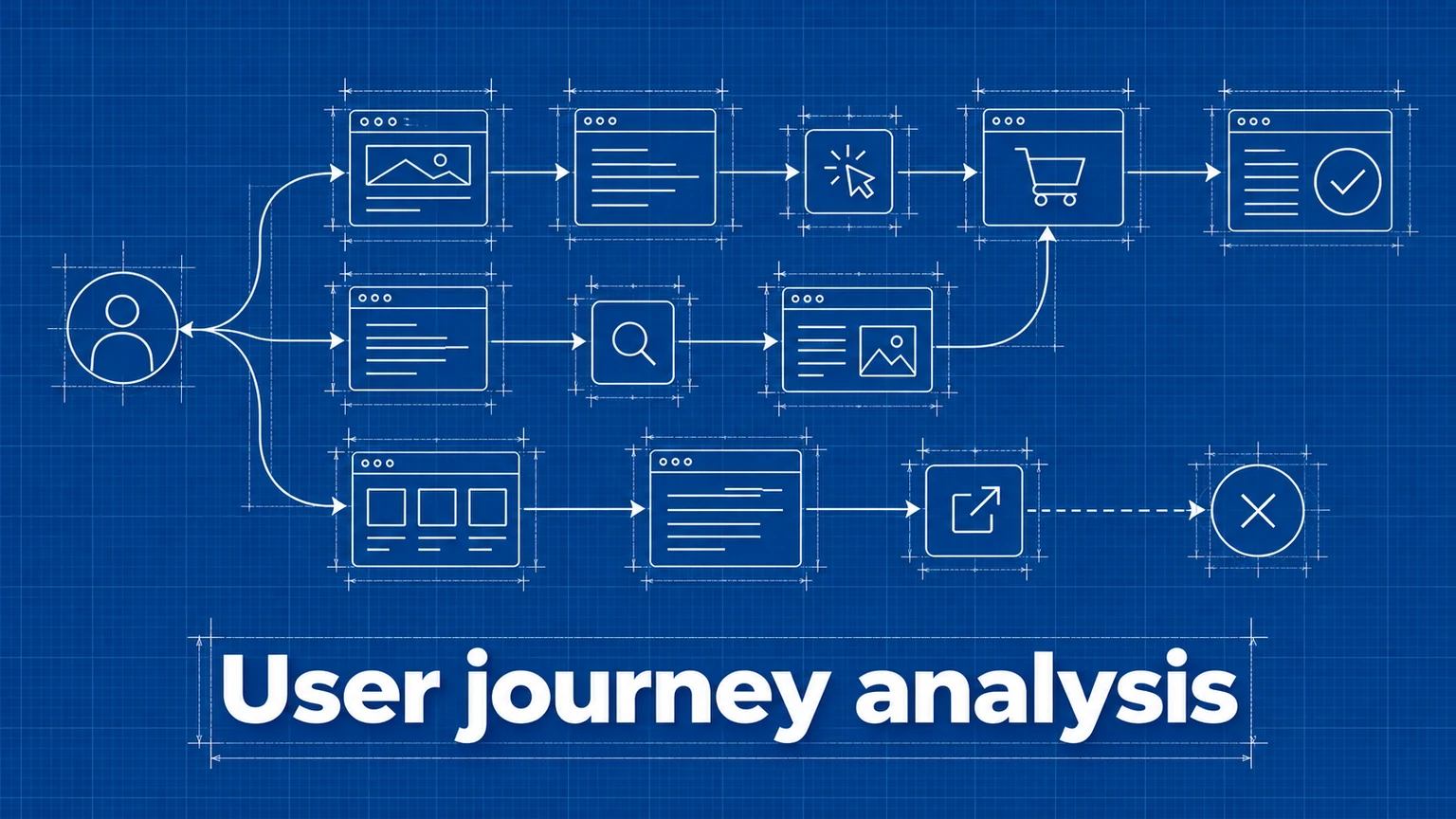
How to Analyze User Journeys on Your Website
Use page and event paths to find common routes, detours, exits, and unexpected paths to conversion, then turn those patterns into testable improvements.